How to Check Any Page's SEO in 10 Seconds (and What Each Result Means)

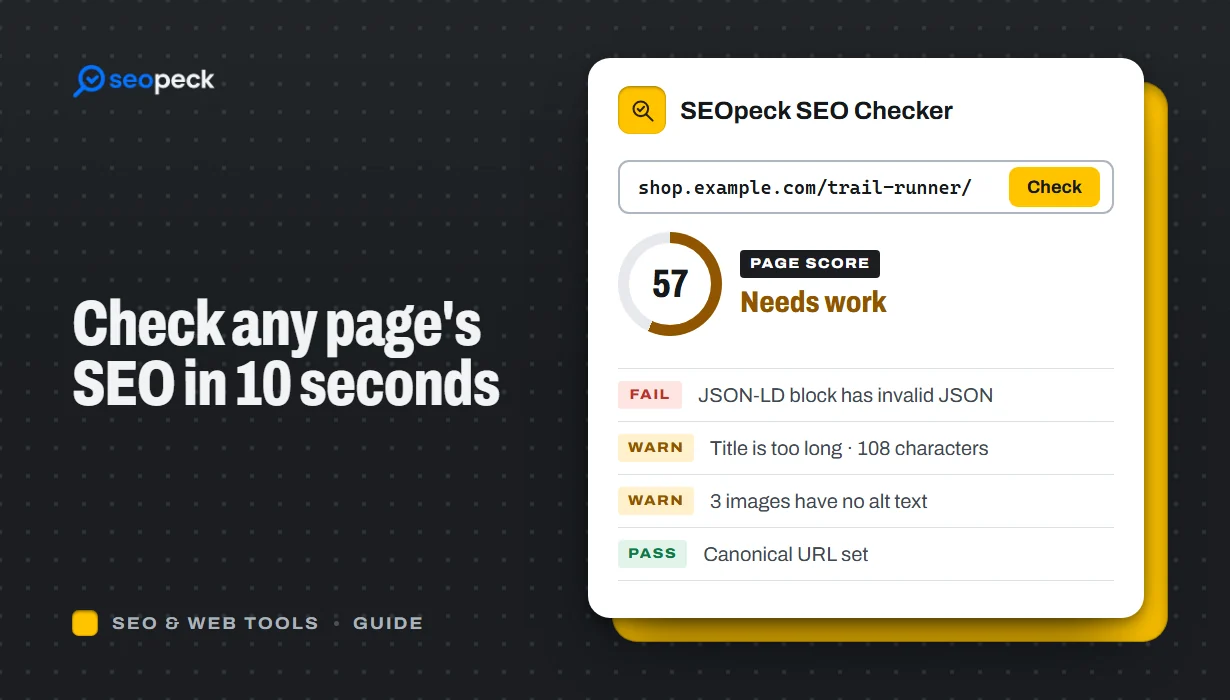
Check a page's title, description, H1, canonical, noindex, robots.txt, alt text, schema, Open Graph and speed in seconds, and know which results matter.
To check a page's SEO quickly, open the page and run an on-page checker on it: a browser extension such as SEOpeck's free SEO checker extension does it in one click, and the On-Page SEO Checker does it from any device by pasting the URL. Either way you get the title, meta description, headings, canonical, indexing rules, image alt text, structured data and social tags in one view.
The check takes seconds; this guide covers what each result means, how to fix it, and how to check the same things by hand.
The 10-second version
- Open the page you want to check. It can be yours or a competitor's: everything here reads public information.
- Click the SEOpeck icon in the toolbar (or press Alt+Shift+S). If you'd rather not install anything, paste the address into the On-Page SEO Checker instead.
- Read the problems at the top first. Red items (a missing title,
noindex, a page blocked by robots.txt) can keep a page out of Google completely. Amber items cost clicks or clarity. The rest is housekeeping.
What to check on any page, and why
1. Title and meta description length
The title is the blue link in Google's results and the description is often the grey text under it. Google cuts both off by width in pixels, not by character count: a title stops at about 580 pixels on desktop and a description at about 920 pixels. That is roughly 50 to 60 and 150 to 160 characters, but wide letters and capitals reach the limit sooner.
What goes wrong: a missing or duplicate title, important words cut off, or no description, so Google picks a sentence from the page.
Fix: put the topic near the start of a unique title, and write the description as a plain answer to "what will I get here?". Test both in the SERP Snippet Preview, which shows where Google would cut them. Our guide on writing title tags and meta descriptions has worked examples.
2. One H1 and headings in order
One clear H1 that matches the title tells readers and search engines what the page is about. H2s and H3s below it should form an outline, one level at a time.
What goes wrong: no H1 (the theme made the logo the heading), several H1s, or headings picked for their font size, so the outline jumps from H1 to H4.
Fix: make the page title the only H1 and use CSS, not heading tags, for big text that is not a heading. The Heading Structure Checker shows the outline and flags skipped levels.
3. Canonical tag
<link rel="canonical" href="..."> tells search engines which address is the main version of a page when the same content is reachable at several (with and without www, with tracking parameters, sorted product lists). Google treats it as a strong hint, not an order.
What goes wrong: the canonical points to a different page, usually the homepage, because a plugin or template set it once for the whole site.
Fix: on a normal page the canonical should be the page's own clean URL. A canonical pointing elsewhere is right only on true duplicates. To get the clean URL and the tag to paste, use a canonical tag generator.
4. noindex
A noindex rule tells search engines not to show the page in results. It can sit in the HTML (<meta name="robots" content="noindex">) or in an HTTP header (X-Robots-Tag: noindex), and the header version does not show up in "view source", which is why it gets missed.
What goes wrong: a setting from the staging site ("discourage search engines") survives the move to the live site, and the whole site quietly disappears from Google.
Fix: remove the tag or header from pages you want found. The Noindex Checker looks at the meta tags, the header, robots.txt, the status code and the canonical in one go.
5. robots.txt
robots.txt, at the root of the domain, tells crawlers which paths they may fetch. If it blocks the page, Google cannot read the content. Note the difference from noindex: a blocked page can still appear in results as a bare link if other sites link to it, and Google cannot see a noindex on a page it is not allowed to fetch.
What goes wrong: a Disallow: / left over from development, or a pattern that matches more than intended.
Fix: test the exact URL in the Robots.txt Tester, which shows which rule decides and for which crawler.
6. Image alt text
The alt attribute describes an image for people using screen readers and for Google Images. Decorative images should have an empty alt="" so screen readers skip them.
Fix: describe what each meaningful image shows in a few words; never use a file name such as IMG_2041.jpg. The Image Alt Text Checker lists every image with missing, empty or file-name alt text.
7. Structured data (schema)
JSON-LD structured data describes the page in a vocabulary search engines understand: an article and its author, a product with its price, breadcrumbs. Valid markup can make a page eligible for rich results; broken markup is ignored.
What goes wrong: a stray comma makes the whole JSON-LD block invalid, or a required property (a product's offers, an article's headline) is missing.
Fix: paste the URL or the code into the JSON-LD Schema Validator. If you are new to it, start with our beginner's guide to schema markup.
8. Open Graph tags
When someone shares the page on LinkedIn, Facebook, WhatsApp or X, those sites read og:title, og:description and og:image to build the preview card. They do not affect Google rankings, but a share with no image and a random title gets far fewer clicks.
Fix: set all three on every page you expect to be shared, with an image of about 1200×630 pixels. The Open Graph Checker shows the preview each network would build.
9. Speed
Google's Core Web Vitals measure loading (Largest Contentful Paint, good at 2.5 seconds or less), responsiveness (Interaction to Next Paint, good at 200 milliseconds or less) and visual stability (Cumulative Layout Shift, good at 0.1 or less). A slow page loses visitors whatever its rank.
Fix: run the page through the Website Speed Test, which uses Google PageSpeed Insights for mobile and desktop and lists what to fix first. Large images are the most common cause of a slow LCP.
Check it by hand, with nothing installed
View source (Ctrl+U on Windows, Cmd+Option+U on a Mac) shows the HTML the server sent. Press Ctrl+F and search for <title, name="description", rel="canonical", noindex, og: and ld+json.
The browser console shows the page after JavaScript has run, which is what Google sees once it renders the page. Press F12, open the Console tab and paste:
const q = s => document.querySelector(s);
console.table({
  title: document.title,
  titleLength: document.title.length,
  description: q('meta[name="description"]')?.content ?? '(none)',
  h1Count: document.querySelectorAll('h1').length,
  canonical: q('link[rel="canonical"]')?.href ?? '(none)',
  robots: q('meta[name="robots"]')?.content ?? '(none)',
  lang: document.documentElement.lang || '(none)',
  imagesWithoutAlt: [...document.images].filter(i => !i.hasAttribute('alt')).length,
  jsonLdBlocks: document.querySelectorAll('script[type="application/ld+json"]').length,
  ogImage: q('meta[property="og:image"]')?.content ?? '(none)',
});
On https://example.com/ (checked October 2026) it prints:
title             Example Domain
titleLength       14
description       (none)
h1Count           0
canonical         (none)
robots            (none)
lang              en
imagesWithoutAlt  0
jsonLdBlocks      0
ogImage           (none)
A placeholder domain is allowed to look like that. A real page with a 14-character title, no description, no H1 and no canonical has four things to fix. If Chrome asks you to type allow pasting first, that is a safety prompt; it is fine for a short snippet you can read, like this one.
The manual route has two blind spots: it does not show HTTP headers (so an X-Robots-Tag: noindex goes unseen) and it does not test robots.txt. Use the Noindex Checker and the Robots.txt Tester for those.
How the SEOpeck extension and tools cover each check
The SEOpeck extension for Chrome and Edge runs all of the checks above on the page you are on and turns them into a 0–100 score. The score is our own quick measure, not a Google metric: it starts at 100 and loses 12 points for each critical problem, 5 for each warning and 1 for each minor note, and the popup explains it. Each check also has a full tool on seopeck.com for when you need more detail or have no extension.
| Check | In the extension | On seopeck.com |
|---|---|---|
| Title and description width | Overview, with a Google result preview in pixels | SERP Snippet Preview |
| H1 and heading order | Overview and Headings, plus outlines drawn on the page | Heading Structure Checker |
| Canonical, noindex, X-Robots-Tag | Overview | Noindex Checker |
| robots.txt and sitemap | Files tab (also shows which AI crawlers are blocked) | Robots.txt Tester |
| Alt text | Images, with missing alt outlined in red on the page | Image Alt Text Checker |
| Structured data | Schema tab, checked against Google's required properties | JSON-LD Schema Validator |
| Open Graph | Social tab, with the share preview | Open Graph Checker |
| Speed | PageSpeed tab (Google PageSpeed Insights, mobile and desktop) | Website Speed Test |
The extension needs no account, reads a page only when you click it and keeps results in your browser; only the PageSpeed tab sends the page address to seopeck.com, to run Google's test.
To check a whole site rather than one page, use the Website SEO Audit, which crawls up to 100 pages and lists missing titles, duplicate descriptions and noindex tags across them.
Mistakes people make when reading the results
- Checking the wrong address.
http://,www.and a trailing slash can each be a different URL with different tags. Check the exact address you want in Google. - Checking a cached copy. After a fix, a CDN or caching plugin may still serve the old HTML. Clear the cache, then check again.
- Reading the score as a ranking. A 100 means the basics are in place. It says nothing about whether the content answers the search better than the pages above it.
- Fixing notes before blockers. One
noindexmatters more than twenty missing alt attributes. Work from the top of the list down.
Before you publish something new, the on-page SEO checklist covers the same ground as a step-by-step list, with internal links and content depth added.
Frequently asked questions
Is the SEO score a Google score?
No. Google does not publish a page score. The extension's score is a quick summary of the checks above, worked out the same way on every page, so you can compare pages and see when a fix worked.
Can I check a competitor's page?
Yes. Titles, meta tags, headings, structured data and robots.txt are public; anyone's browser receives them. Checking them is a normal part of SEO research.
Why does the checker say my description is too long when it is under 160 characters?
Google cuts by pixel width. Wide letters and capitals use up the roughly 920 pixels sooner, so a 150-character description can still be cut off.
How often should I check?
After every template, theme or plugin change, after a site move, and whenever a page drops in Search Console. Those are the moments a stray noindex or wrong canonical tends to appear.
Next step
Open the page you care about most and run it through the On-Page SEO Checker, or add the free SEOpeck extension to Chrome or Edge and click it there. Fix the red items first, then check the page again.


Get a page ready for Google
Fix the basics, see how the result looks in search, add structured data, then check the share preview.
Guide: The on-page SEO checklist
Keep reading
All guides-
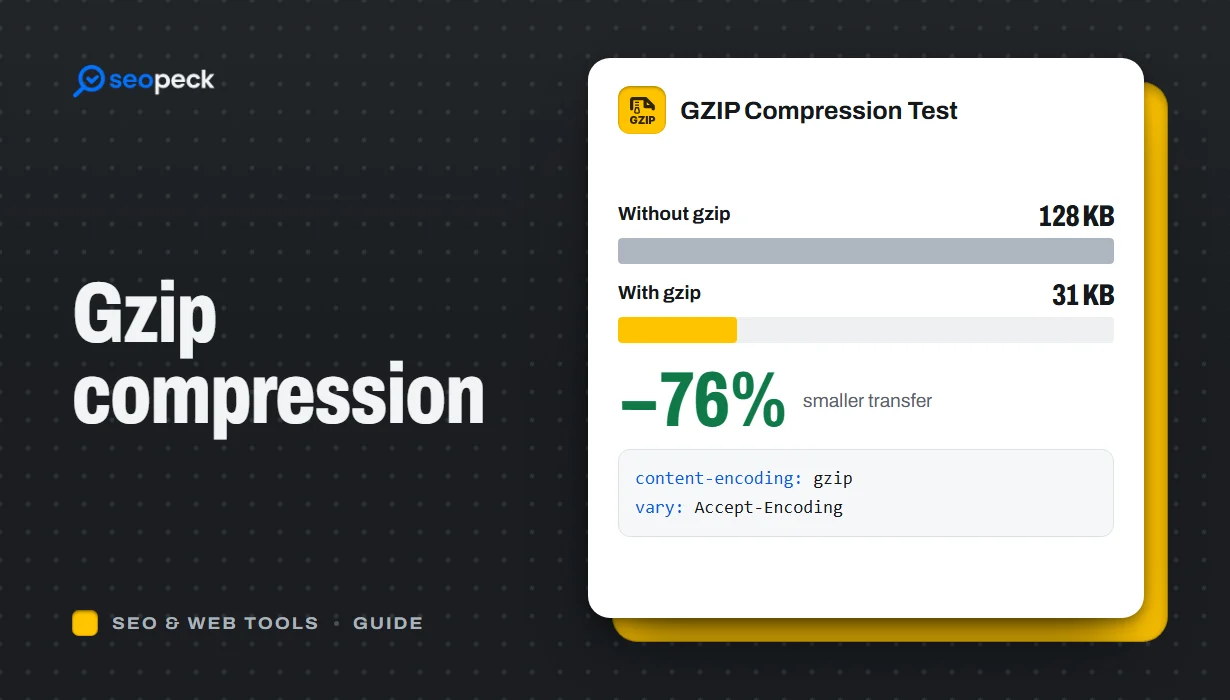 What Is GZIP Compression, and Is It Working on Your Site?
Goes with GZIP Compression Test
-
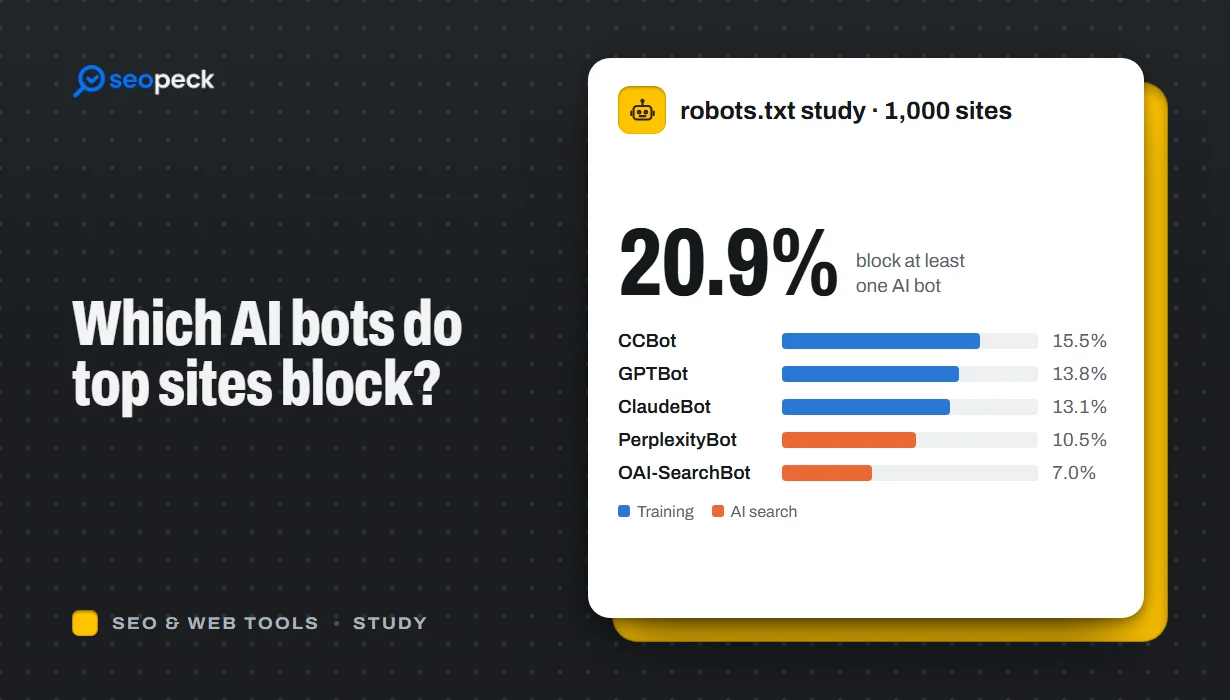 Which AI Crawlers Do the Top 1,000 Websites Block? (robots.txt Study, October 2026)
Goes with Robots.txt Generator
-
 301 vs 302 Redirects: Which One to Use, and How to Check Them
Goes with Canonical Tag Generator