What Is GZIP Compression, and Is It Working on Your Site?
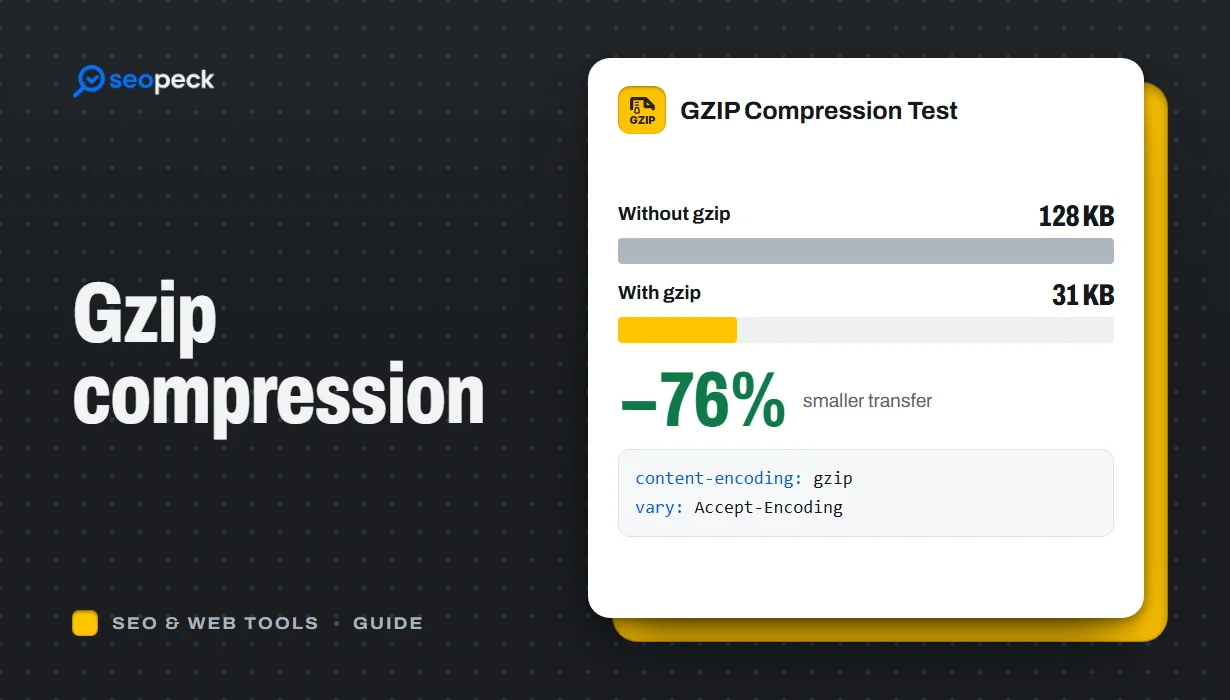
How GZIP and Brotli compression make pages load faster, what should and should not be compressed, how to switch it on, and how to check it is working.
Most of what a browser downloads to show a web page is text: HTML, CSS, JavaScript, JSON and SVG. Text compresses extremely well, often shrinking by 70 percent or more. HTTP compression uses that fact to send smaller files over the network, and it is one of the easiest speed improvements a site can make.
How it works
When a browser requests a page, it tells the server which compression methods it understands with a header such as Accept-Encoding: gzip, deflate, br. If the server supports one of them, it compresses the response and says which method it used with Content-Encoding: gzip (or br). The browser decompresses the file before using it. Visitors never notice anything except that the page arrives sooner.
GZIP vs Brotli
GZIP has been the standard for decades and is supported by essentially every browser and server. Brotli is a newer algorithm that usually produces smaller files for text, especially at higher compression levels. All modern browsers support Brotli over HTTPS. The best setup serves Brotli to browsers that ask for it and GZIP to everyone else; many hosts and CDNs do this automatically.
What to compress, and what not to
- Compress: HTML, CSS, JavaScript, JSON, XML, SVG, plain text and web fonts in older formats such as TTF.
- Do not bother: JPG, PNG, WebP, GIF, MP4, WOFF2 fonts and ZIP files. They are already compressed, so compressing them again wastes server time and can even make them slightly larger.
Images need a different approach: resizing, choosing the right format and lossy compression. Our guide on compressing images for the web covers that.
How to switch it on
- Managed hosting and CDNs: compression is often already on, or available as a setting in the control panel.
- Apache and LiteSpeed: enable
mod_deflate(or the server's built-in compression) and list the text content types to compress, usually in the server config or.htaccess. - Nginx: set
gzip on;and agzip_typeslist in the configuration, and add the Brotli module if you want Brotli too.
After making changes, clear any cache or CDN layer so you are testing the new behaviour.
How to check it is working
Enter your page in the GZIP Compression Test. It requests the page with compression allowed and reports whether the server compressed it and how large the page is. You can also see the Content-Encoding header directly with the HTTP Headers Parser, and the On-Page SEO Checker flags compression alongside its other checks.
Remember to test your CSS and JavaScript files as well as the HTML page, since they are often the largest text files a page loads.
Beyond compression
Compression makes each file smaller; it does not reduce how many files you send. Once compression is on, look at removing unused CSS and JavaScript, minifying code with the CSS Minifier and JavaScript Minifier, and caching static files so returning visitors do not download them again.