SSL Checker
Check whether a site's SSL certificate is valid, who issued it and when it expires.


SSL Checker
An expired or misconfigured certificate causes browser warnings and lost visitors. Enter a website address to see whether its certificate is valid, who issued it and when it expires.
How to use SSL Checker
- Enter the website address in Website URL.
- Click Check SSL.
- Read the validity, issue and expiry dates and certificate details.
When it comes in handy
- Making sure a certificate is renewed before it expires.
- Checking the domain's expiry date as well, because a lapsed domain takes a site offline just like an expired certificate.
- Checking a site after moving hosts or installing a new certificate.
- Confirming who issued a certificate.
Frequently asked questions
What happens when a certificate expires?
Browsers show a full-page security warning, so most visitors leave. Renew it several days before the expiry date.
Do free certificates count?
Yes. Certificates from providers such as Let's Encrypt are trusted by browsers and give the same encryption as paid ones.
Related guides
-
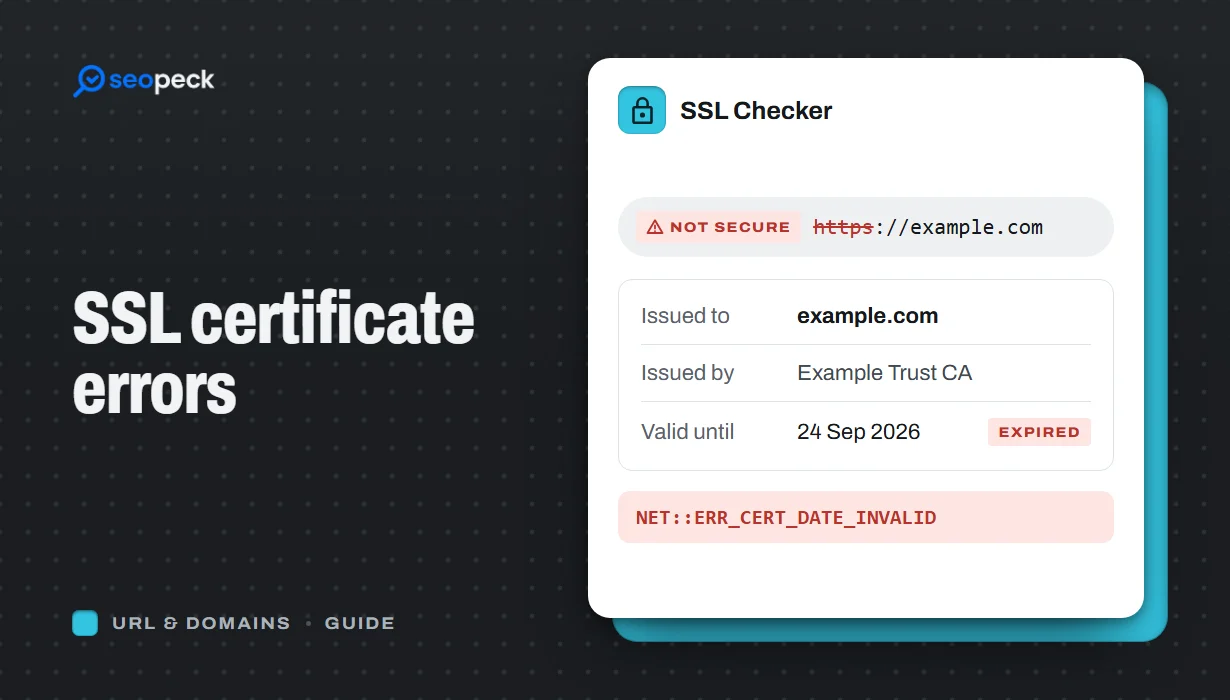 SSL Certificate Errors Explained (and How to Fix Each One)
What the common browser certificate warnings mean, why they happen, and the practical fix for expired, mismatched, self-signed and incomplete certificates.
SSL Certificate Errors Explained (and How to Fix Each One)
What the common browser certificate warnings mean, why they happen, and the practical fix for expired, mismatched, self-signed and incomplete certificates.
-
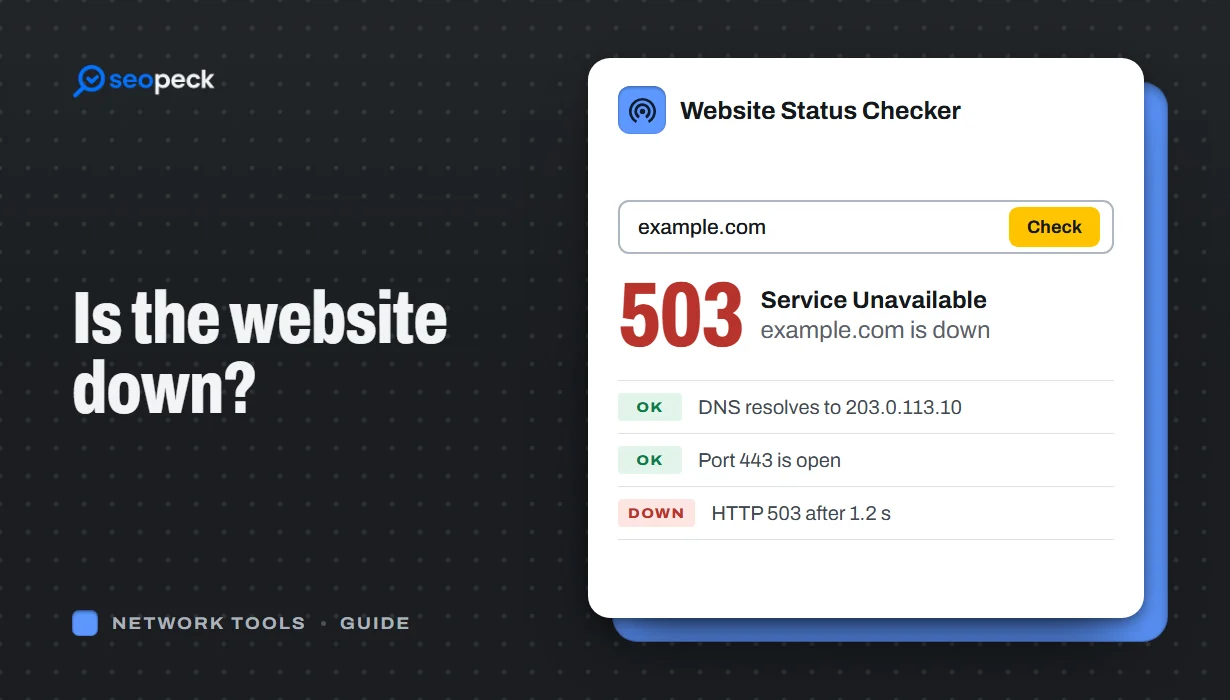 Is the Website Down? How to Actually Check, Step by Step
A step-by-step way to figure out whether a site is down for everyone or just for you, and what each result actually tells you.
Is the Website Down? How to Actually Check, Step by Step
A step-by-step way to figure out whether a site is down for everyone or just for you, and what each result actually tells you.
-
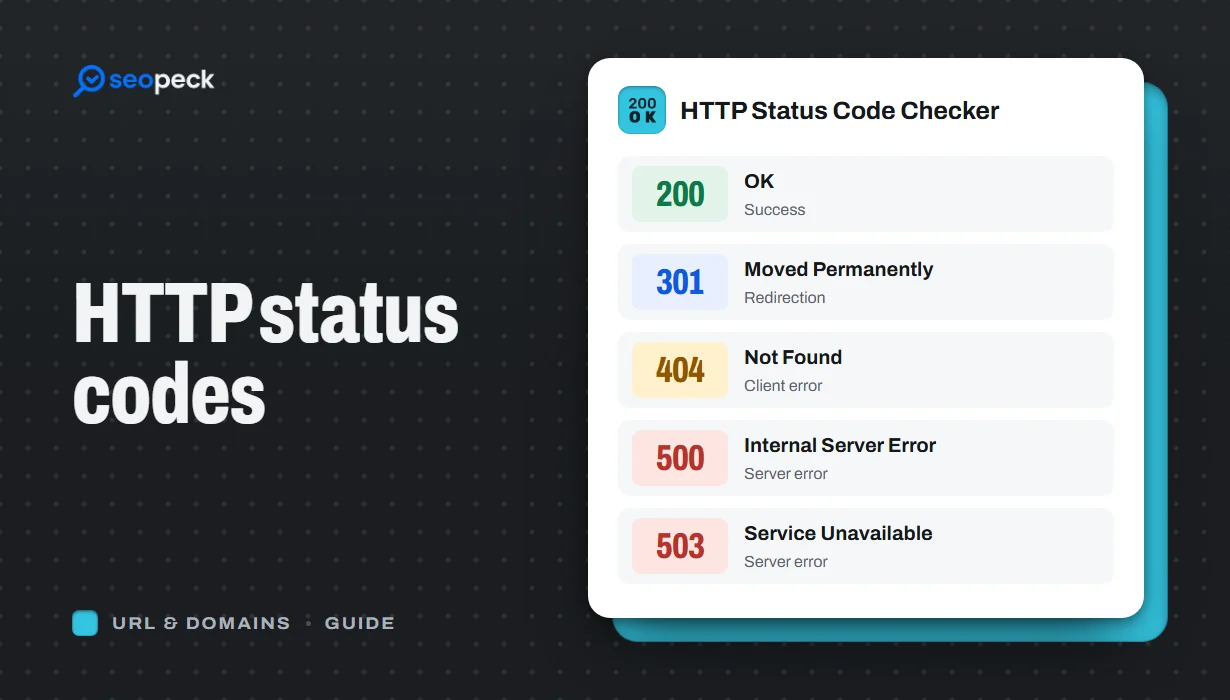 HTTP Status Codes Explained: What 200, 301, 404 and 500 Really Mean
A plain-language guide to the HTTP status codes you actually meet, grouped by what they tell you, and what to do when you see each one.
HTTP Status Codes Explained: What 200, 301, 404 and 500 Really Mean
A plain-language guide to the HTTP status codes you actually meet, grouped by what they tell you, and what to do when you see each one.