
SSL Certificate Errors Explained (and How to Fix Each One)
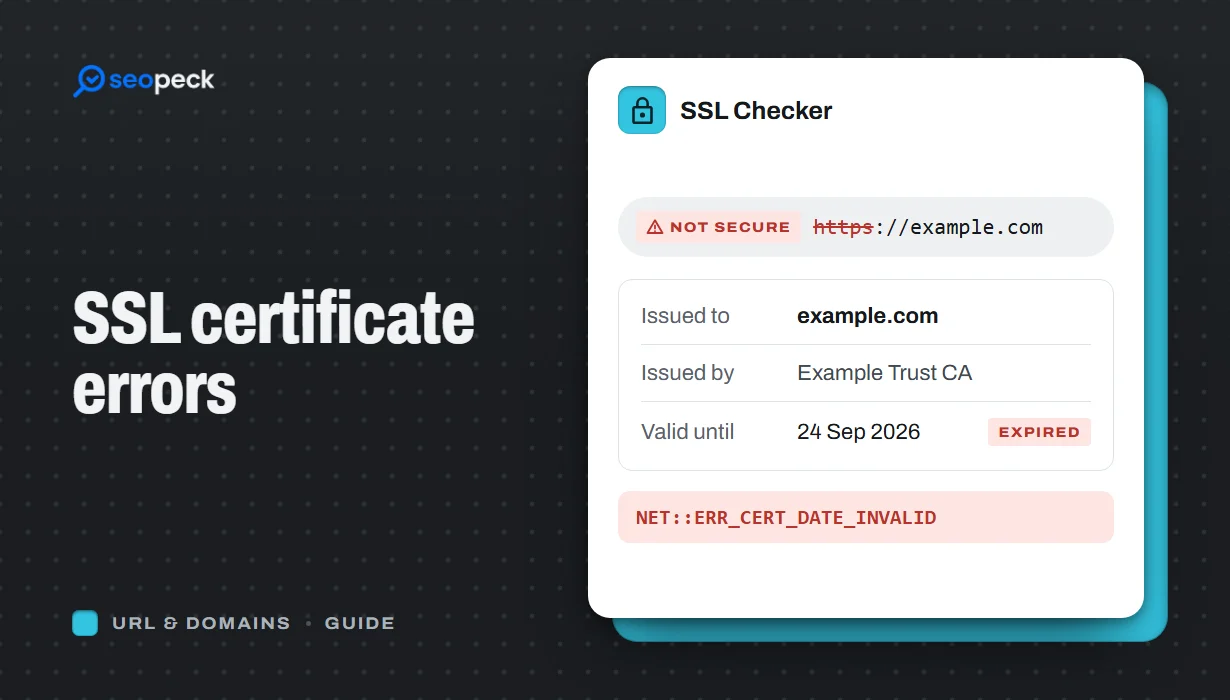
What the common browser certificate warnings mean, why they happen, and the practical fix for expired, mismatched, self-signed and incomplete certificates.
"Your connection is not private." Few messages scare visitors away faster. When a browser shows a certificate warning, most people leave rather than click through. The good news is that almost every SSL problem falls into a handful of types, each with a clear fix.
What an SSL certificate does
An SSL/TLS certificate does two jobs. It lets the browser encrypt the connection, so nobody in between can read or change the traffic, and it proves the site is really the domain it claims to be. The certificate is issued by a certificate authority (CA) that the browser trusts, and it is valid for specific domain names for a limited time.
Before you start fixing anything, check the certificate from outside with the SSL Checker. It shows who issued the certificate, which name it covers and when it expires.
1. The certificate has expired
What you see: a warning mentioning an expired or invalid date.
Why: certificates are only valid for a limited period, and free certificates such as Let's Encrypt last 90 days. If automatic renewal fails, the site breaks on the expiry date.
Fix: renew the certificate in your hosting panel or with your certificate tool, then make sure automatic renewal is switched on. Check the expiry date regularly so you are not caught out.
2. The name does not match
What you see: a warning that the certificate is for a different site.
Why: the certificate covers example.com but the visitor opened www.example.com, or a subdomain was added later and is not included.
Fix: issue a certificate that lists every name you use, or a wildcard certificate for subdomains. Then redirect all variations to one main address; see our guide to 301 redirects.
3. The certificate is self-signed or from an untrusted issuer
What you see: a warning that the certificate authority is not trusted.
Why: the certificate was created by the server itself, often a default certificate left in place, rather than issued by a recognised CA.
Fix: replace it with a certificate from a trusted CA. Most hosts offer free Let's Encrypt certificates with one click.
4. The certificate chain is incomplete
What you see: the site works in some browsers but not others, or fails in apps and tools that call it.
Why: a certificate is trusted through a chain: your certificate, one or more intermediate certificates, and a root the browser already knows. If the server does not send the intermediate certificates, some clients cannot complete the chain.
Fix: install the full chain, often supplied as a "fullchain" or "CA bundle" file, alongside your certificate.
5. Mixed content
What you see: no big warning, but the padlock is missing or some images and scripts do not load.
Why: the page loads over HTTPS but still requests some files over plain HTTP. Browsers block or flag those requests.
Fix: update the links to images, scripts and stylesheets to use https://. A search-and-replace in the database often fixes it after a site moves to HTTPS.
6. The visitor's clock is wrong
If only one person sees the error, check their device's date and time. A clock set years in the past or future makes every valid certificate look invalid.
Prevention checklist
- Turn on automatic renewal and check expiry dates every month.
- Cover every domain and subdomain you use, and redirect the rest.
- Install the full certificate chain.
- Redirect HTTP to HTTPS with a 301, and fix mixed content.
The SSL Checker covers the certificate itself. To confirm the HTTP-to-HTTPS redirect works in one hop, use the Redirect Checker, and to review your security headers, try the HTTP Headers Parser.