JPG to PNG
Convert JPG photos to lossless PNG in bulk, up to 30 at once, privately in your browser.


JPG to PNG
JPG to PNG converts JPG and JPEG images into PNG, a lossless format that keeps every pixel exactly as it is from now on. Convert up to 30 images at once, then download them one by one or all together. The conversion happens in your browser, so your photos are never uploaded.
How to convert JPG to PNG
- Choose your JPG or JPEG files, or drag them onto the page: up to 30 files of 50 MB each.
- Wait a moment while each image is converted.
- Click Download next to each PNG, or Download all.
Why convert JPG to PNG?
- Editing without further loss: every time a JPG is edited and saved again, it loses a little more quality. Working in PNG stops that.
- Required format: some programs, game engines and upload forms ask for PNG.
- Adding transparency later: PNG supports transparent areas, for example after removing a background.
What converting does not do
Converting cannot bring back detail that JPG compression already removed: the PNG looks exactly like the JPG, just without further loss. It also does not make the background transparent by itself. To cut out the subject, use the Background Remover, which saves a transparent PNG directly. And a PNG of a photo is usually several times larger than the JPG, so keep JPG for photos you only want to share.
When it comes in handy
- Preparing photos for editing in design tools without stacking up JPG artifacts.
- Uploading images to services that only accept PNG.
- Making screenshots or scans that were saved as JPG ready for documentation.
Need a smaller file instead? JPG to WebP or the Image Compressor are the better choice.
Frequently asked questions
Why is the PNG so much bigger than the JPG?
Does converting improve quality?
Will the background become transparent?
Are my photos uploaded?
Related guides
-
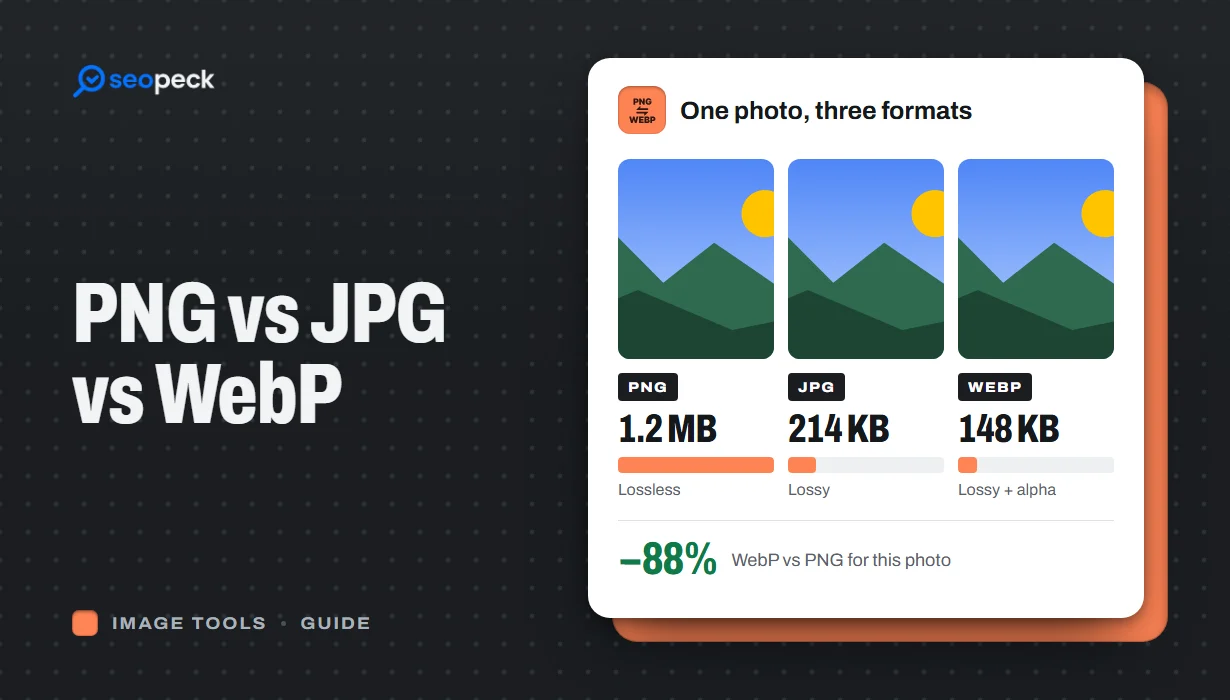 PNG vs JPG vs WebP: Which Image Format Should You Actually Use?
A plain-language comparison of PNG, JPG and WebP, with rules of thumb for choosing the right one and tools to convert between them.
PNG vs JPG vs WebP: Which Image Format Should You Actually Use?
A plain-language comparison of PNG, JPG and WebP, with rules of thumb for choosing the right one and tools to convert between them.
-
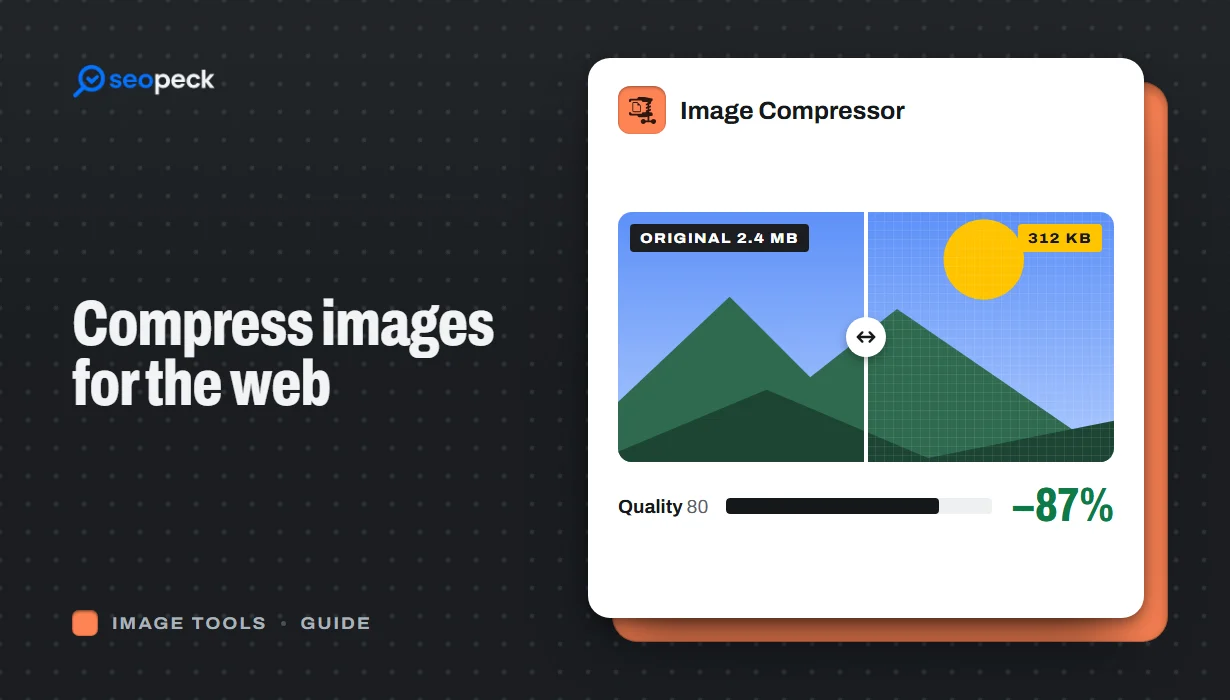 How to Compress Images for the Web Without Making Them Look Worse
Why images slow pages down, how to pick the right size, format and quality, and a quick workflow that keeps photos sharp and pages fast.
How to Compress Images for the Web Without Making Them Look Worse
Why images slow pages down, how to pick the right size, format and quality, and a quick workflow that keeps photos sharp and pages fast.
-
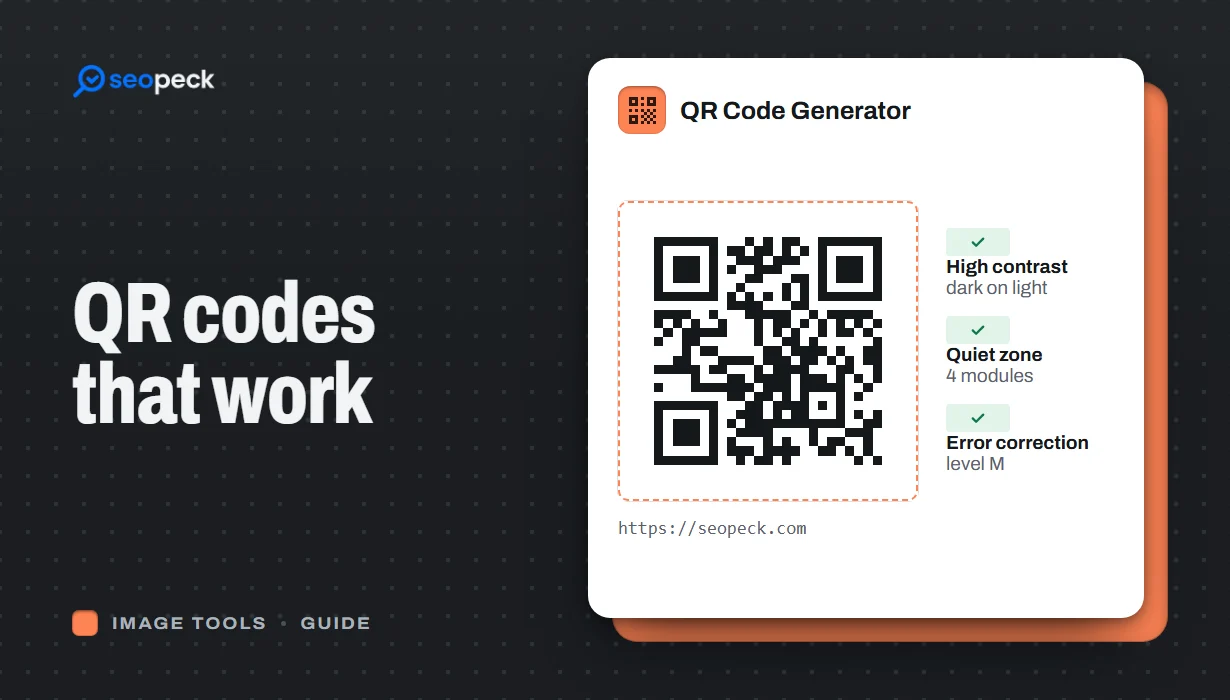 How to Make a QR Code That Actually Scans: Size, Contrast and Testing
Practical rules for creating QR codes that scan first time, in print and on screen: what to encode, how big to print, colours, quiet zones and testing.
How to Make a QR Code That Actually Scans: Size, Contrast and Testing
Practical rules for creating QR codes that scan first time, in print and on screen: what to encode, how big to print, colours, quiet zones and testing.