Image Compressor
Shrink JPG, PNG and WebP images in bulk, convert to WebP and resize, privately in your browser.
Compressed in your browser. Your images are never uploaded.
No photo to hand? (1600 × 1067 JPG, 0.3 MB)
Quality 70–80 suits most photos. For PNG it sets the palette: 256 colours from 70, 128 from 50, every colour from 90. Dithering blends palette colours so gradients stay smooth. For photos, WebP keeps every colour and transparency at a fraction of the size.
Your last settings are kept in this browser.
-
This PNG is a photo. A palette PNG has to approximate its colours; WebP keeps them all, and transparency too.
At 100% both panes scroll together, so banding and grain are easy to spot.


Image Compressor
The Image Compressor makes JPG, PNG and WebP files smaller without making them look worse. JPGs and WebPs are re-encoded at the quality you choose. PNGs are reduced to a palette of 256 colours or fewer with dithering, the technique TinyPNG and pngquant use, so gradients stay smooth and transparency is kept; PNGs that already have 256 colours or fewer, such as most logos, are kept exact. Depending on the image, a PNG usually shrinks by 30 to 80%. You can compress up to 30 images at once, and nothing is uploaded: the work happens in your browser, on your device.
How to use the Image Compressor
- Choose your images or drop them on the page. JPG, PNG and WebP are supported, up to 30 files of 50 MB each.
- Set the quality. 75 is a good starting point for photos; the result appears straight away with the size before and after.
- Optionally pick Save as WebP for the smallest files, or a longest side such as 1920 px to scale large photos down at the same time.
- Click Compare to check the result next to the original. Switch to 100% to see both at full size; the two views scroll together, so banding or grain is easy to spot.
- Download each image or Download all.
What the settings do
- Quality (JPG and WebP): lower numbers throw away more fine detail. Between 70 and 80, most photos look the same as the original to the eye at a fraction of the size. Below 50, blockiness and smudged edges start to show.
- Quality (PNG): sets how many colours the palette keeps: 256 colours from 70 upwards, 128 from 50, 64 from 30 and 32 below that. From 90 every colour is kept and the PNG is only re-compressed losslessly.
- PNG colours: Automatic follows the quality setting; 256 colours always makes the smallest palette PNG; Keep all colours never changes a pixel and only re-compresses the file, which saves less.
- Dithering: mixes neighbouring palette colours in a fine pattern so skies, skin and soft shadows stay smooth instead of breaking into bands. It is on by default; turning it off gives a slightly smaller file with flatter gradients, which can suit simple graphics.
- Save as: keeps the original format by default. WebP is usually 25 to 35% smaller than a JPG of the same visual quality and supports transparency, and every current browser can show it. JPG has no transparency, so transparent areas become white.
- Longest side: a 12-megapixel phone photo is 4000 px wide, but a blog post rarely shows images wider than 1200 to 1920 px. Scaling down saves far more than quality alone.
Tips for the smallest files
- For website images, resize to the largest size the page actually displays, then compress. A 1920 px WebP at quality 75 is often under 200 KB.
- Use PNG only for screenshots, logos and graphics with flat colours or transparency. When a PNG is really a photo, the tool says so and shows how big the same image would be as WebP; one click switches that image to WebP, which keeps transparency too.
- If a file does not get smaller, it was already well compressed. The tool then keeps your original instead of handing you a bigger file; try a lower quality or WebP.
- Compression also removes hidden metadata such as the camera model and GPS location, which is good for privacy before you share a photo.
When it comes in handy
- Speeding up a website: smaller images improve Largest Contentful Paint and Core Web Vitals.
- Getting attachments under an email, form or marketplace upload limit.
- Preparing blog, product and social media images before adding them to a CMS or shop.
Frequently asked questions
Are my images uploaded to a server?
How much smaller will my images get?
Does compression change the width and height?
Is PNG transparency kept?
What is the best quality setting?
Why does my compressed PNG look grainy or slightly different in colour?
Related guides
-
 How to Compress Images for the Web Without Making Them Look Worse
Why images slow pages down, how to pick the right size, format and quality, and a quick workflow that keeps photos sharp and pages fast.
How to Compress Images for the Web Without Making Them Look Worse
Why images slow pages down, how to pick the right size, format and quality, and a quick workflow that keeps photos sharp and pages fast.
-
 On-Page SEO Checklist: 15 Things to Check Before You Hit Publish
A practical, no-jargon checklist for getting a single page right: titles, descriptions, headings, images, links, indexing and structured data.
On-Page SEO Checklist: 15 Things to Check Before You Hit Publish
A practical, no-jargon checklist for getting a single page right: titles, descriptions, headings, images, links, indexing and structured data.
-
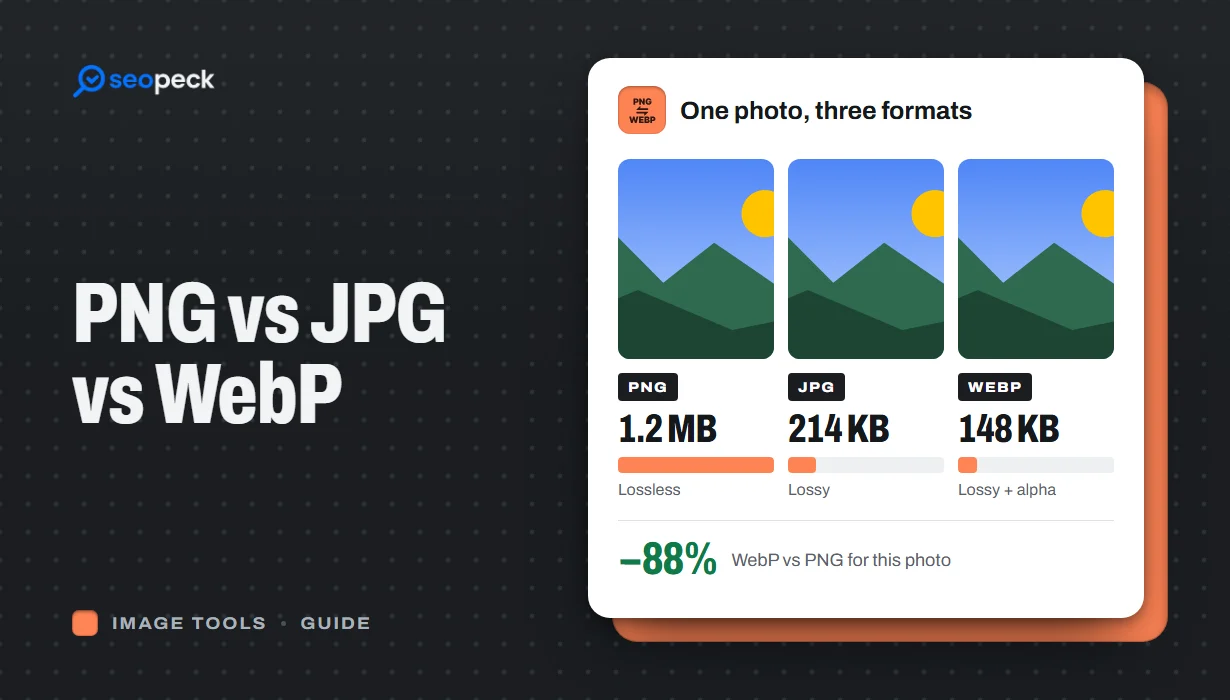 PNG vs JPG vs WebP: Which Image Format Should You Actually Use?
A plain-language comparison of PNG, JPG and WebP, with rules of thumb for choosing the right one and tools to convert between them.
PNG vs JPG vs WebP: Which Image Format Should You Actually Use?
A plain-language comparison of PNG, JPG and WebP, with rules of thumb for choosing the right one and tools to convert between them.