
How to Make a QR Code That Actually Scans: Size, Contrast and Testing
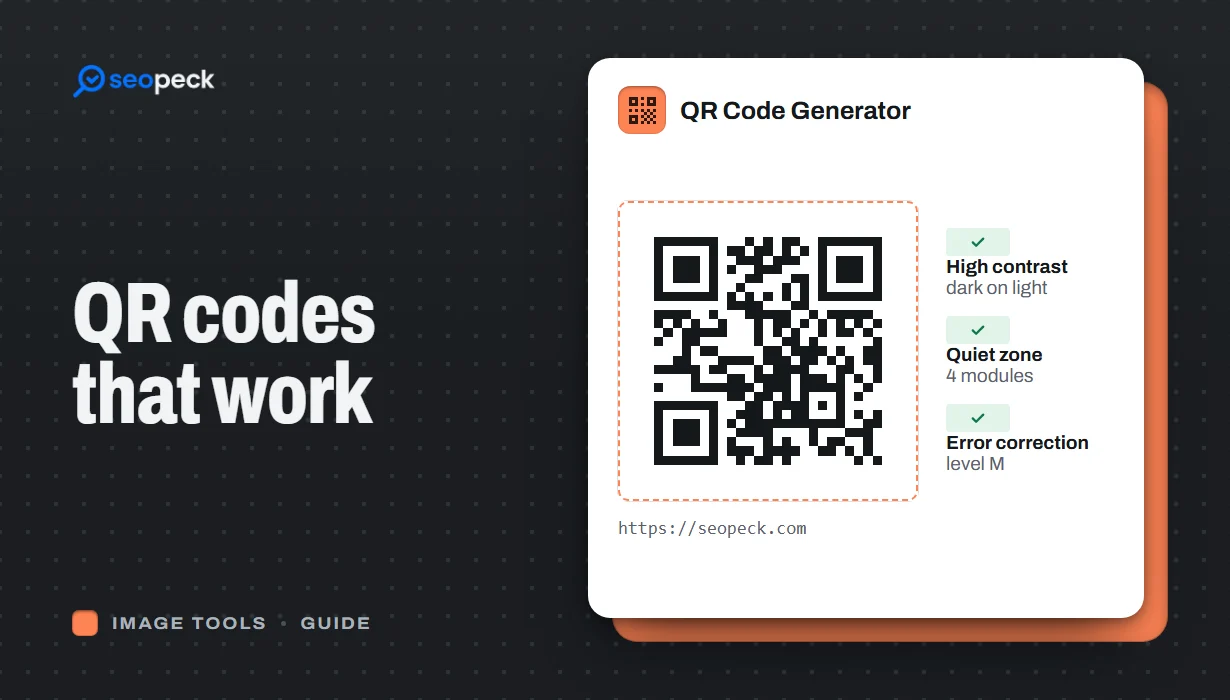
Practical rules for creating QR codes that scan first time, in print and on screen: what to encode, how big to print, colours, quiet zones and testing.
A QR code is one of the easiest ways to move someone from a poster, menu, package or slide to a web page. Making one takes seconds. Making one that scans reliably for everyone, in poor light, from a distance and on older phones, takes a little more thought. These are the rules that matter.
1. Keep the content short
The more data a QR code holds, the more tiny squares it needs, and the harder it is to scan. A short URL such as https://example.com/menu produces a simple, robust code. A long address full of tracking parameters produces a dense one. Trim unnecessary parameters, or use a short, clean page address.
2. Point it at a page you control
Once a code is printed, you cannot change what it contains. If it points to a page on your own site, you can update that page, or redirect it, without reprinting anything. Our guide to redirects explains how.
3. Print it big enough
A common rule of thumb is that the code should be at least one tenth of the scanning distance. A code on a table tent read from 30 cm needs to be at least about 3 cm wide; a poster read from 3 metres needs a code of about 30 cm. When in doubt, go bigger: 2 to 3 cm is a sensible minimum for anything held in the hand.
4. Use strong contrast, dark on light
Scanners look for dark modules on a light background. Black on white is the safest choice. Coloured codes work if the dark colour is truly dark and the background truly light. Avoid light-on-dark (inverted) codes, low-contrast pastel combinations and busy photos behind the code.
5. Leave a quiet zone
The empty margin around a QR code, called the quiet zone, helps the scanner find its edges. Leave clear space of about four modules (the small squares) on every side. Do not let text, borders or other graphics crowd the code.
6. Export at a high enough resolution
A blurry, stretched or heavily compressed image can turn sharp squares into fuzzy blobs. Generate the code at a large size and scale it down for print, rather than enlarging a small image. Keep it square and never stretch it in one direction.
7. Tell people what they will get
A code on its own gets fewer scans than a code with a short label such as "Scan for the menu" or "Scan to book". People are more willing to scan when they know where it leads.
8. Test before you print
Test the final design, not just the code: print a sample at the real size, and scan it with a couple of different phones, in normal light and in dimmer light, from the distance people will actually be standing. If you only have the image file, the QR Code Reader can decode it from a screenshot to confirm it contains the right link.
Create your code
The QR Code Generator turns a link into a code you can download straight away. Before you generate it, run the destination page through the On-Page SEO Checker or at least open it on a phone, so the people who scan land on a page that loads quickly and works on mobile.