Image to Grayscale
Convert any picture to black and white (shades of grey) and save the result.
Edited in your browser. Your photo is never uploaded.


Image to Grayscale
Image to Grayscale turns a colour JPG, PNG or WebP image into black and white, shown side by side with the original before you download it. It converts each pixel using perceived brightness, the same weighting broadcast television and most photo software use, so greens, reds and blues keep a natural tone instead of turning muddy. The conversion runs in your browser and nothing is uploaded.
How to make an image black and white
- Choose a JPG, PNG or WebP image, or drag it onto the page.
- Compare the original and the grayscale version.
- Download the grayscale image. It keeps the original format; PNG transparency is kept.
How the conversion works
A simple average of red, green and blue makes greens look too dark and blues too light, because the eye is far more sensitive to green than to blue. This tool uses the standard luma formula instead: 29.9% red, 58.7% green and 11.4% blue. The result matches how bright each colour looks to people, which is why skies, skin and foliage look right in the black-and-white version.
When it comes in handy
- Preparing images for black-and-white printing or documents with a grayscale requirement.
- Giving photos a classic monochrome look for a website, portfolio or social post.
- Checking whether a design still works without colour, for example for colour-blind readers or grayscale print.
- Making scanned documents easier to read and smaller to store.
For a whole PDF, use Grayscale PDF. For brightness, contrast and other looks, try Image Filters or Image Adjustment.
Frequently asked questions
Is grayscale the same as black and white?
Will the file be smaller?
Can I get the colour back later?
Is my image uploaded?
Related guides
-
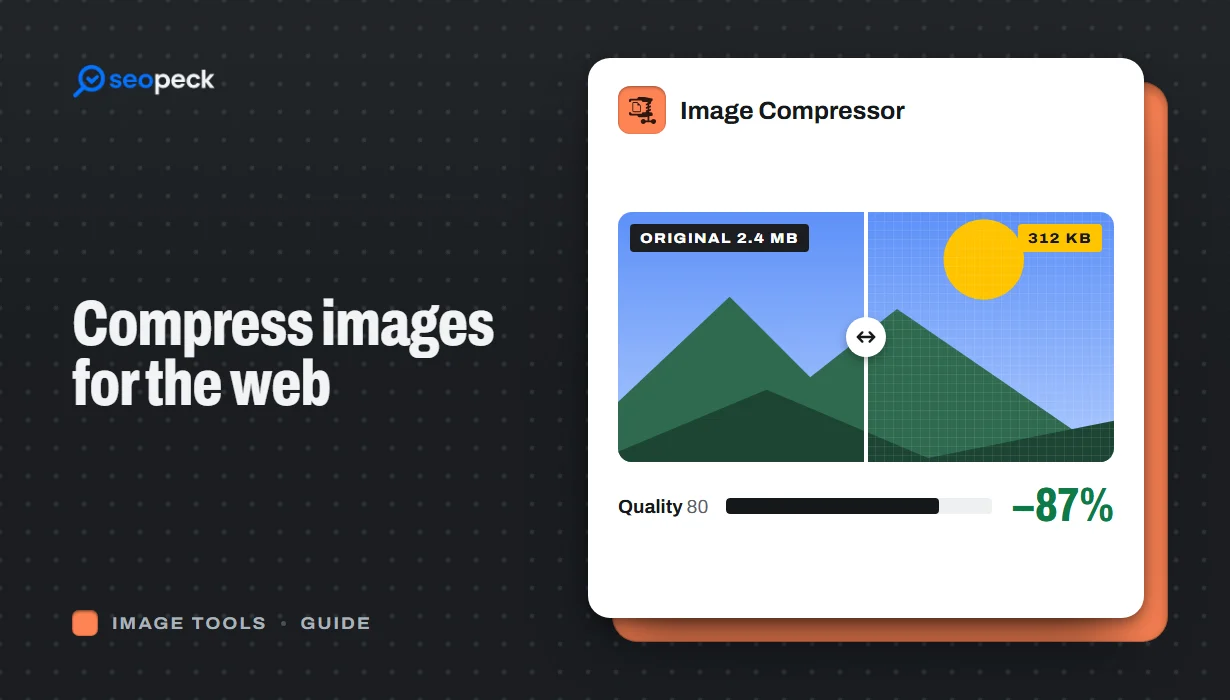 How to Compress Images for the Web Without Making Them Look Worse
Why images slow pages down, how to pick the right size, format and quality, and a quick workflow that keeps photos sharp and pages fast.
How to Compress Images for the Web Without Making Them Look Worse
Why images slow pages down, how to pick the right size, format and quality, and a quick workflow that keeps photos sharp and pages fast.
-
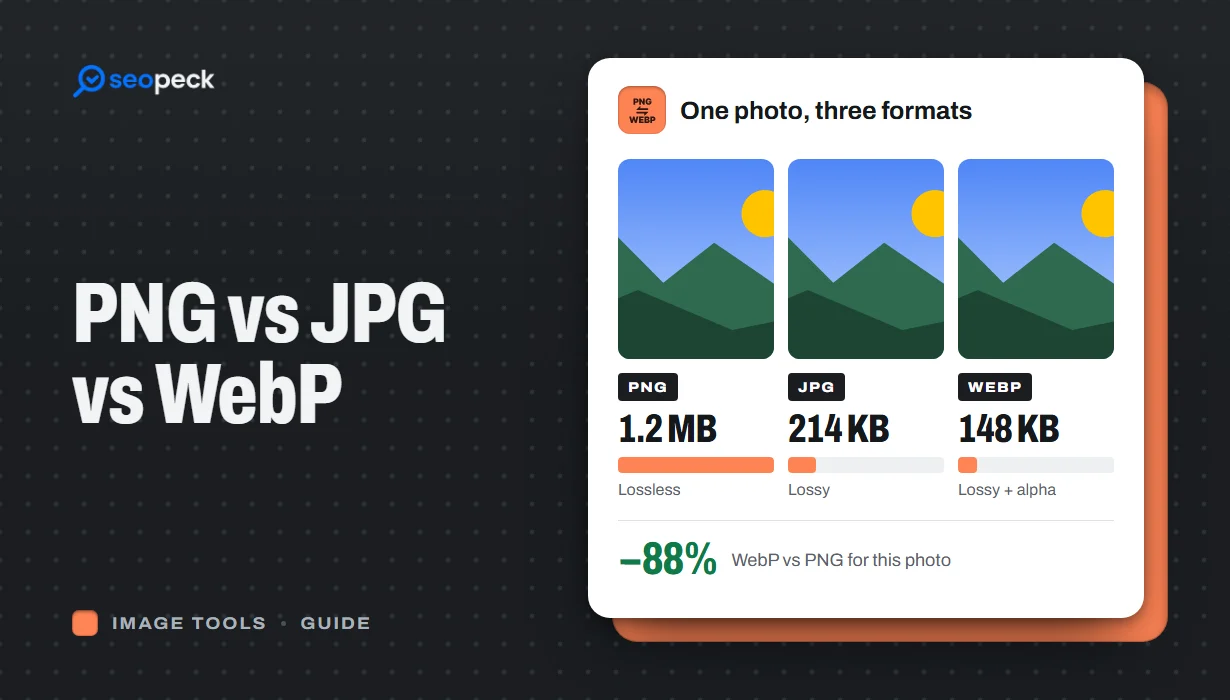 PNG vs JPG vs WebP: Which Image Format Should You Actually Use?
A plain-language comparison of PNG, JPG and WebP, with rules of thumb for choosing the right one and tools to convert between them.
PNG vs JPG vs WebP: Which Image Format Should You Actually Use?
A plain-language comparison of PNG, JPG and WebP, with rules of thumb for choosing the right one and tools to convert between them.
-
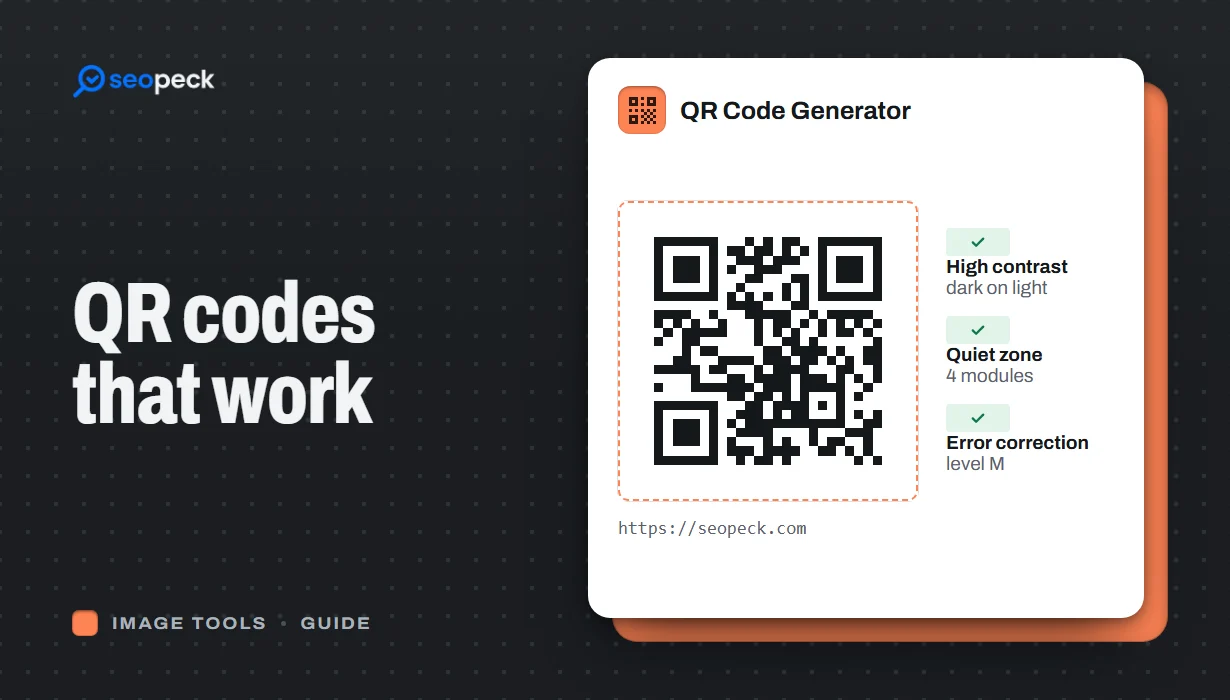 How to Make a QR Code That Actually Scans: Size, Contrast and Testing
Practical rules for creating QR codes that scan first time, in print and on screen: what to encode, how big to print, colours, quiet zones and testing.
How to Make a QR Code That Actually Scans: Size, Contrast and Testing
Practical rules for creating QR codes that scan first time, in print and on screen: what to encode, how big to print, colours, quiet zones and testing.