Image Rotate
Fix sideways photos by rotating them in 90-degree steps, right in your browser.
Edited in your browser. Your photo is never uploaded.


Image Rotate
Image Rotate turns a JPG, PNG or WebP image by 90 degrees to the left or right, or upside down, and saves it in its original format. It is the quick fix for a sideways phone photo or a scanned page that came out the wrong way. The image is rotated in your browser and never uploaded.
How to rotate an image
- Choose a JPG, PNG or WebP image, or drag it onto the page.
- Click rotate left or rotate right; each click turns the image 90 degrees. Click twice to turn it upside down.
- When the preview looks right, download the rotated image.
Why photos show up sideways
Phones save photos the way the sensor captured them and add an orientation note (EXIF data) saying how to display them. Some websites, email programs and older software ignore that note, so the photo appears sideways even though it looks fine on your phone. Rotating the actual pixels, as this tool does, fixes it everywhere.
Good to know
- The width and height swap when you rotate by 90 degrees, so a 4000 × 3000 photo becomes 3000 × 4000.
- The image keeps its format: a PNG stays PNG with its transparency, a JPG stays JPG.
- To straighten a slightly tilted horizon by a few degrees, use a photo editor; this tool rotates in 90-degree steps.
When it comes in handy
- Fixing sideways or upside-down photos before posting or emailing them.
- Turning scanned pages and receipts upright before putting them in a PDF with JPG to PDF.
- Making screenshots portrait or landscape for slides and documents.
Rotating pages that are already in a PDF? Use Rotate PDF. For a video, use Rotate Video.
Frequently asked questions
Does rotating reduce quality?
Can I rotate many images at once?
Is my image uploaded?
Why does my photo look correct here but sideways elsewhere?
Related guides
-
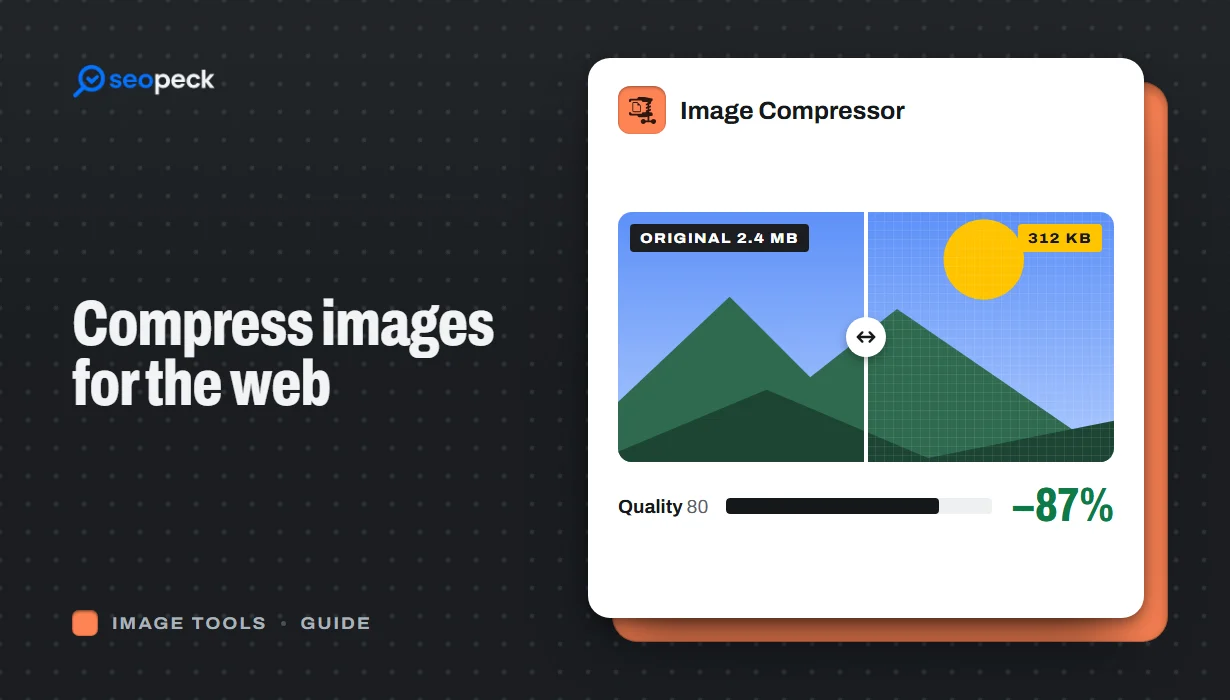 How to Compress Images for the Web Without Making Them Look Worse
Why images slow pages down, how to pick the right size, format and quality, and a quick workflow that keeps photos sharp and pages fast.
How to Compress Images for the Web Without Making Them Look Worse
Why images slow pages down, how to pick the right size, format and quality, and a quick workflow that keeps photos sharp and pages fast.
-
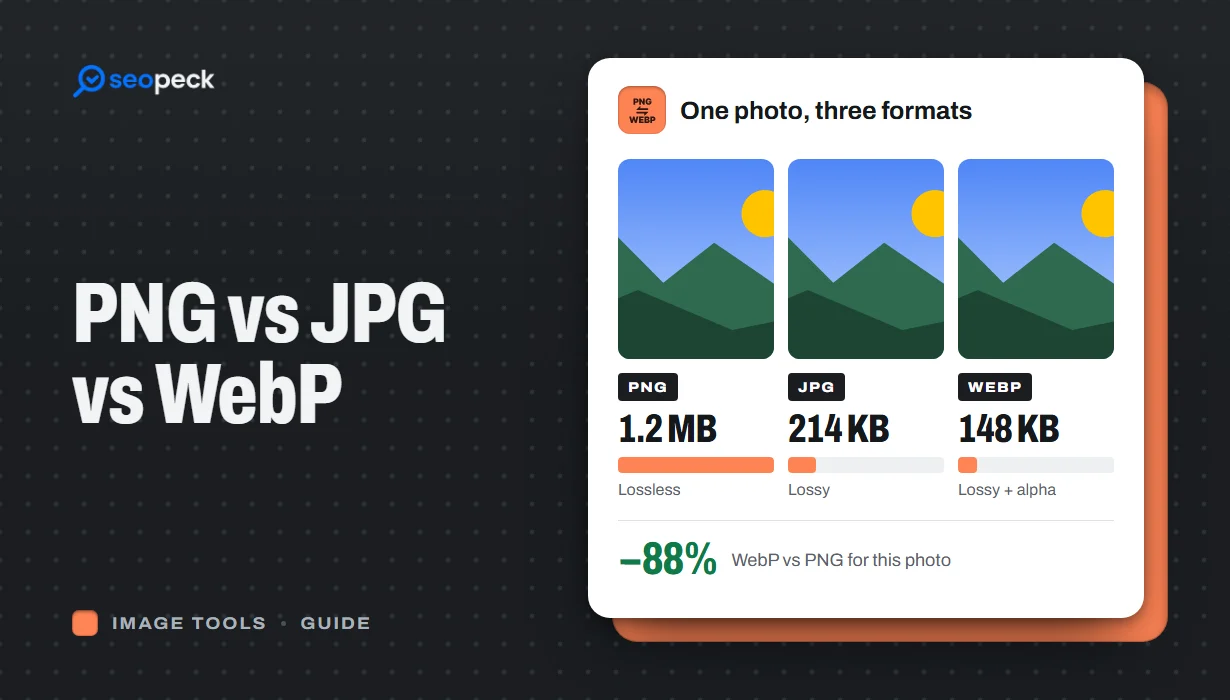 PNG vs JPG vs WebP: Which Image Format Should You Actually Use?
A plain-language comparison of PNG, JPG and WebP, with rules of thumb for choosing the right one and tools to convert between them.
PNG vs JPG vs WebP: Which Image Format Should You Actually Use?
A plain-language comparison of PNG, JPG and WebP, with rules of thumb for choosing the right one and tools to convert between them.
-
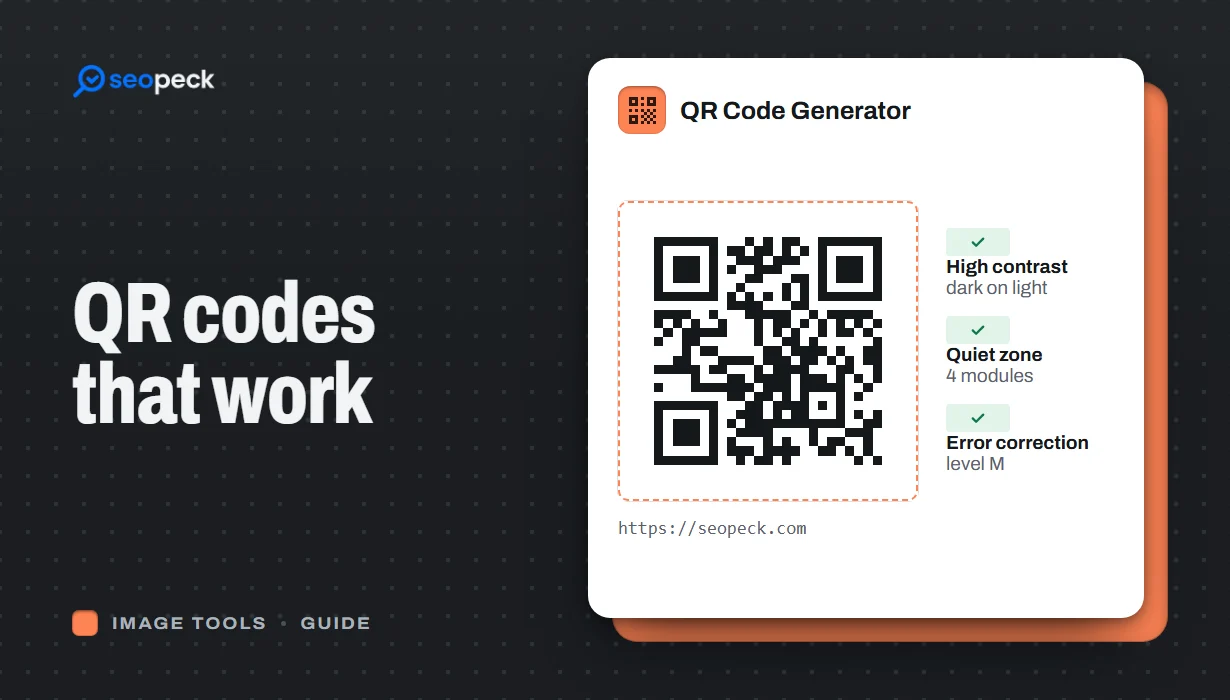 How to Make a QR Code That Actually Scans: Size, Contrast and Testing
Practical rules for creating QR codes that scan first time, in print and on screen: what to encode, how big to print, colours, quiet zones and testing.
How to Make a QR Code That Actually Scans: Size, Contrast and Testing
Practical rules for creating QR codes that scan first time, in print and on screen: what to encode, how big to print, colours, quiet zones and testing.