IP Information
Look up any IP address: location, ISP, organisation, ASN and time zone. Leave it empty for your own IP.


IP Information
IP Lookup shows where an IP address is registered and who runs it: country, region, city and postcode, the internet provider (ISP), the organisation, the network's ASN and domain, the time zone and approximate coordinates. It works for IPv4 and IPv6. Leave the box empty to look up your own public IP address.
How to use IP Lookup
- Type or paste an IP address, such as
8.8.8.8, or leave the box empty to check your own. - Click the button to get the information.
- Use the share menu to copy a link to the result or save it as a report.
What each field means
- Country, region, city and postcode: where the IP is registered or most often seen, from IP geolocation databases.
- ISP: the company that provides the internet connection.
- Organisation: the company the address block is assigned to, which can differ from the ISP, for example a business renting addresses from a provider.
- ASN: the Autonomous System Number of the network that announces the IP on the internet, such as AS15169 for Google. Every large network has one.
- Network domain: the website of the network owner, handy for finding the right abuse contact.
- Time zone: the local time zone of the location, useful when reading log timestamps.
How accurate is IP location?
Country is right for the vast majority of addresses. City is a good guess for home broadband but can be off by tens or hundreds of kilometres, and for mobile networks it often shows the carrier's hub city. VPNs, proxies, Tor and corporate networks show the location of their exit server, not the person. The coordinates point to an area, never to a street address, and an IP address alone does not identify a person.
When it comes in handy
- Checking where suspicious logins, sign-ups or orders come from.
- Investigating an IP from server logs, spam or a firewall alert, and finding its network owner to report abuse.
- Confirming that your VPN really shows another country: look up your own IP with the VPN on and off.
- Seeing which provider and data centre hosts a server.
Frequently asked questions
How do I find my own IP address?
Can someone find my home address from my IP?
Why does my IP show the wrong city?
What is the difference between an ISP and an ASN?
Where does the data come from?
Related guides
-
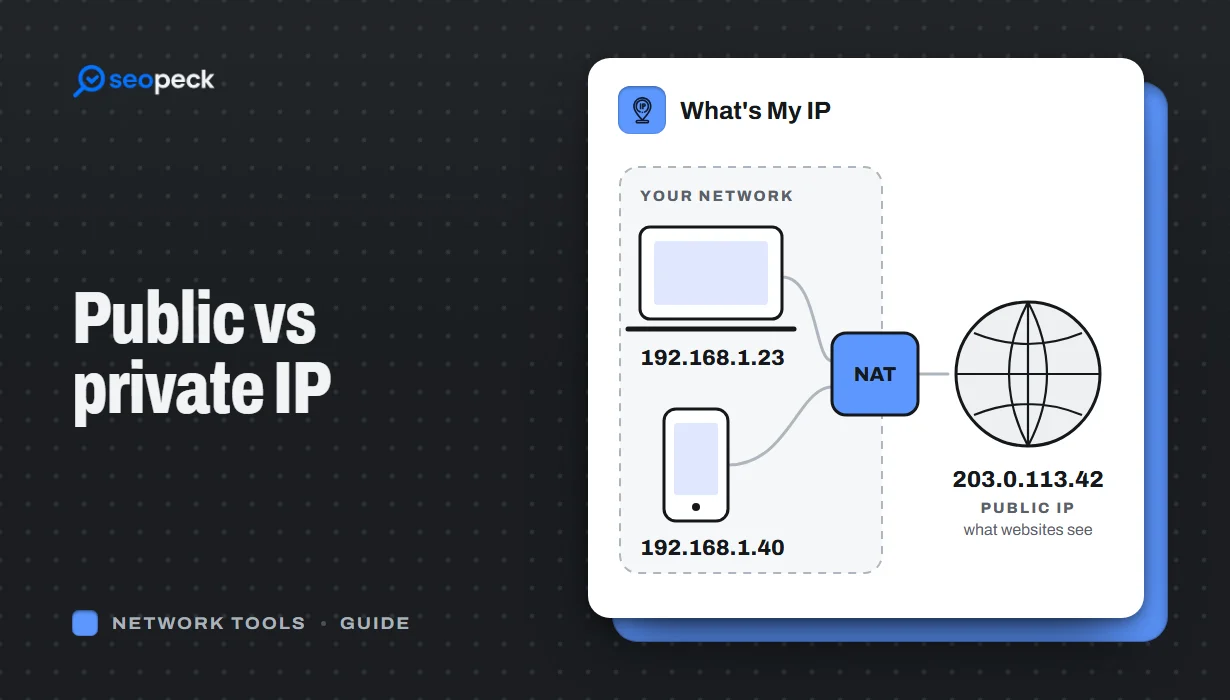 Public vs Private IP Address: What "What's My IP" Actually Shows You
The difference between the public IP address websites see and the private address your device uses at home, and what an IP lookup can and cannot reveal.
Public vs Private IP Address: What "What's My IP" Actually Shows You
The difference between the public IP address websites see and the private address your device uses at home, and what an IP lookup can and cannot reveal.
-
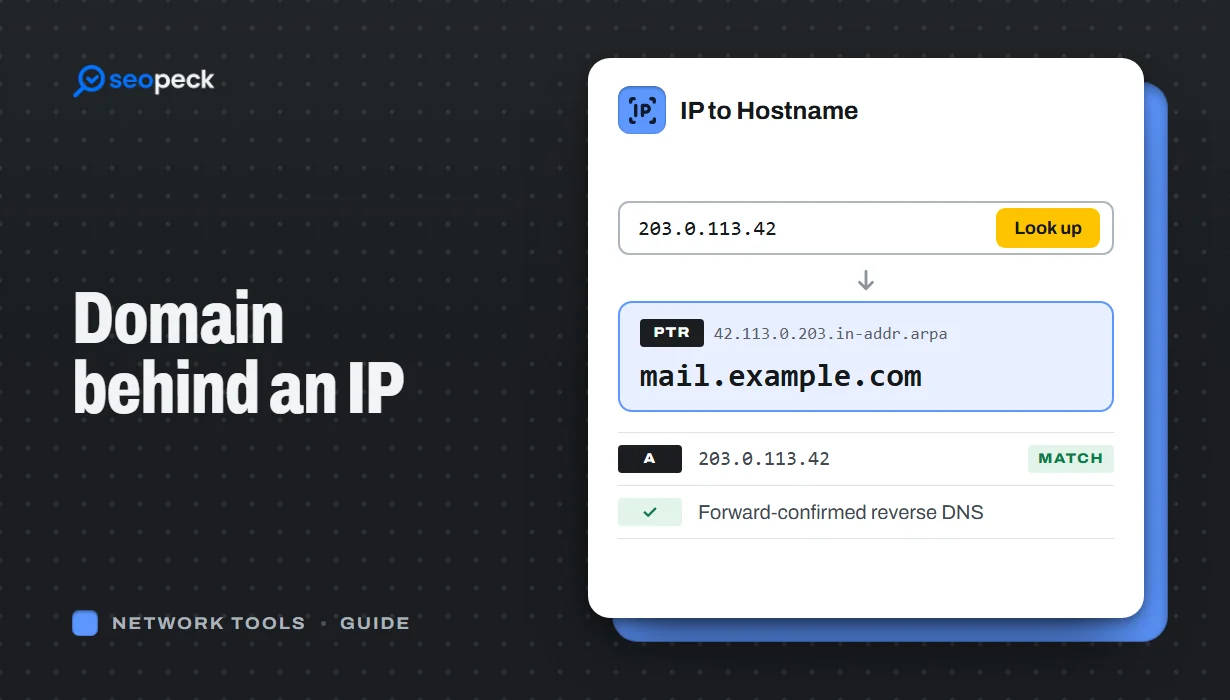 How to Find the Domain Name Behind an IP Address
Turn an IP address into a hostname with a reverse DNS (PTR) lookup, online or with nslookup and dig. Learn how to read the result, why many IPs show a hosting company or no name at all, and which lookup to use when you want the owner or the website instead.
How to Find the Domain Name Behind an IP Address
Turn an IP address into a hostname with a reverse DNS (PTR) lookup, online or with nslookup and dig. Learn how to read the result, why many IPs show a hosting company or no name at all, and which lookup to use when you want the owner or the website instead.
-
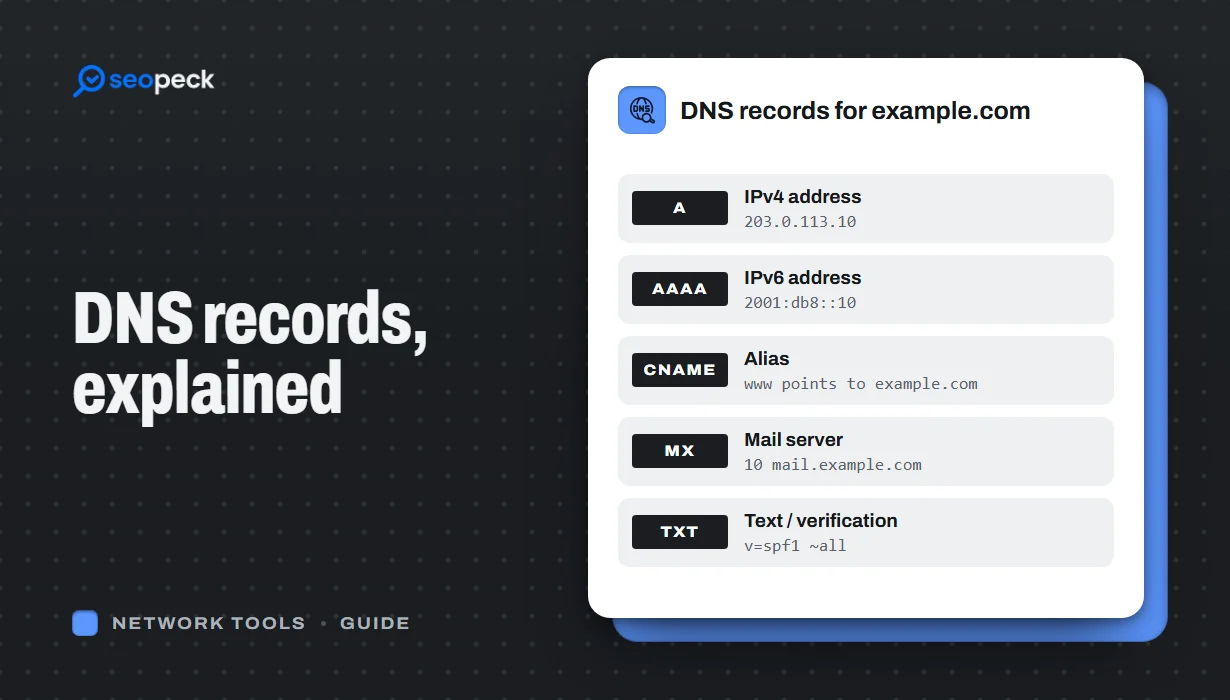 DNS Records Explained: A Practical Guide to A, AAAA, MX, TXT and CNAME
What A, AAAA, MX, TXT and CNAME records actually do, in plain language, with the tools to check any domain's records in seconds.
DNS Records Explained: A Practical Guide to A, AAAA, MX, TXT and CNAME
What A, AAAA, MX, TXT and CNAME records actually do, in plain language, with the tools to check any domain's records in seconds.