
Free PDF Tools That Never Upload Your Files: Merge, Compress, Protect and More
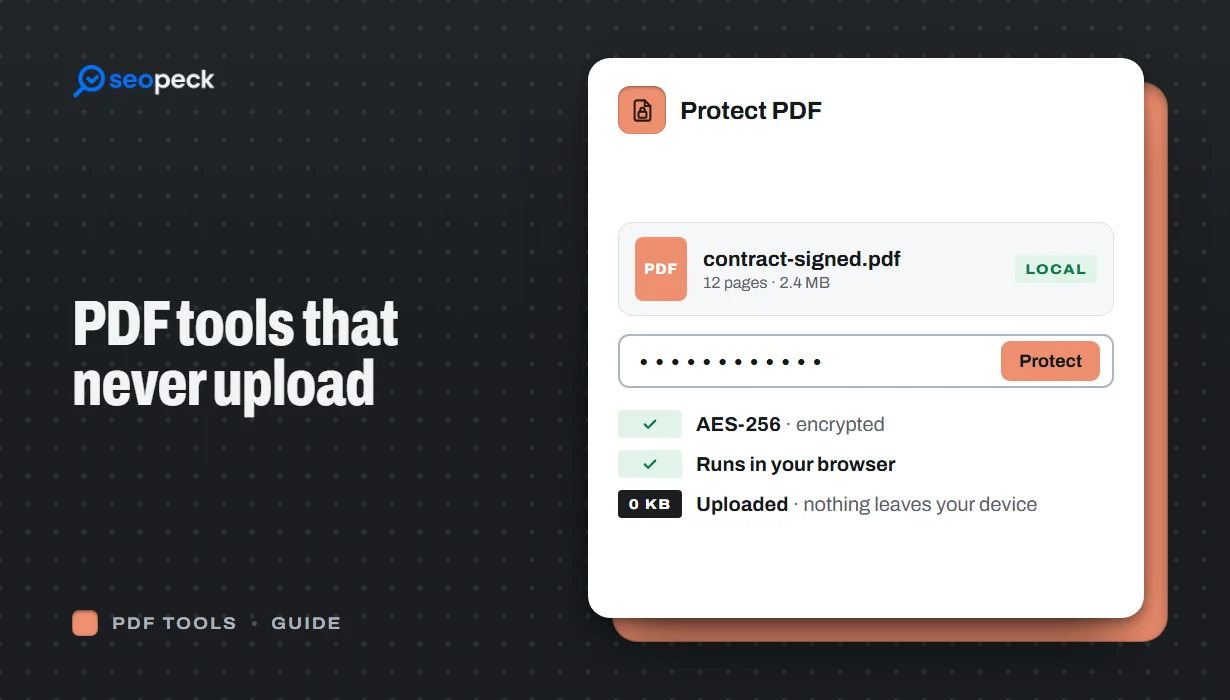
Most online PDF tools send your document to someone else's server. Here is why that matters, and how to merge, split, compress, sign and password-protect PDFs entirely inside your browser instead.
Contracts, bank statements, payslips, medical letters, ID scans: the PDFs we most often need to merge, shrink or lock are also the ones we least want to hand to a stranger. Yet the usual way to do it online is to upload the file to a website, let its server process it, and download the result. This guide explains what that actually involves, and how to do the same jobs without your file ever leaving your computer.
What happens when you "upload" a PDF
A typical online PDF tool copies your document to its server, works on it there, and keeps the result long enough for you to download it. Reputable services delete files after an hour or so, but you are relying on their word, their security, and every company they use for storage and logging. For a restaurant menu that is fine. For a signed contract or a passport scan, it is a real risk that is easy to avoid.
The alternative: tools that run in your browser
Modern browsers are powerful enough to read and rewrite PDF files themselves. SEOpeck's PDF Tools work this way: the page loads the program, and your file is opened, processed and saved by your own browser. Nothing is sent to our server, so there is nothing for us to store, leak or delete. You can check this yourself: open the browser's developer tools, switch to the Network tab and run a tool. You will not see your file go anywhere.
There is a side benefit, too. Because there is no upload or download round trip, large files are often faster to process locally than online, and the tools keep working on a slow connection once the page has loaded.
What you can do
Combine and rearrange
- Merge PDF joins several PDFs into one, in the order you choose.
- Split PDF breaks a document into separate files by page range.
- Organize PDF lets you drag pages into a new order, and Rotate PDF fixes sideways scans.
- Delete PDF Pages and Extract PDF Pages remove the pages you do not need, or pull out the ones you do.
Make files smaller
Compress PDF reduces file size so a document fits under an email attachment limit or an upload form's cap. Scanned documents usually shrink the most, because they are really a stack of photos.
Convert
- PDF to JPG and PDF to PNG turn each page into an image.
- JPG to PDF and PNG to PDF turn photos and screenshots into a single PDF.
- PDF to Text pulls out the text so you can copy, search or reuse it.
Finish and sign
- Add Page Numbers and Watermark PDF for reports and drafts.
- Sign PDF to draw or type a signature and place it on the page.
- PDF Metadata Editor to change or clear the title, author and other hidden details before you share a file.
Password-protect a PDF
The newest additions are Protect PDF and Unlock PDF. Protect PDF encrypts a document with AES-256, the same standard used by banks and by Adobe Acrobat, so it cannot be opened without the password. You can also switch off printing, copying or editing for people who do open it.
A few tips for passwords on documents:
- Use a long passphrase, such as four unrelated words, rather than a short word with a number on the end. The encryption is only as strong as the password. Our Password Generator can make one for you.
- Send the password separately. If the PDF goes by email, send the password by text message or say it on a call. A password in the same email protects nothing.
- Keep a copy. There is no "forgot password" for an encrypted PDF. If the password is lost, the file is effectively lost too.
- Restrictions are a polite request. Blocking printing or copying stops casual reuse in normal PDF readers, but it is not a strong lock. The open password is the real protection.
Remove a password you know
Password-protected files are a nuisance when you have to open them every day, such as your own bank statements. Unlock PDF takes the file and its password and saves a copy without encryption. It will not guess or crack a password you do not have; that is deliberate. Only remove protection from documents you own or are entitled to open.
When a server-based tool is still the right choice
Browser tools are limited by your device. A very large PDF of several hundred megabytes may be slow on an older phone, and some jobs, such as turning a scanned image into editable text with OCR or converting to Word with perfect layout, still need heavier software. For the everyday jobs above, though, there is no need to upload anything.
Summary
If a document contains anything personal, prefer a PDF tool that works inside your browser. All of SEOpeck's PDF Tools are free, need no account, add no watermark, and never send your file to our server.